How to Sign a PDF for Free Without Uploading It to a Server
Sign a PDF free in your browser: add text and your signature, preview and download. The file never leaves your device: no server, no sign-up.
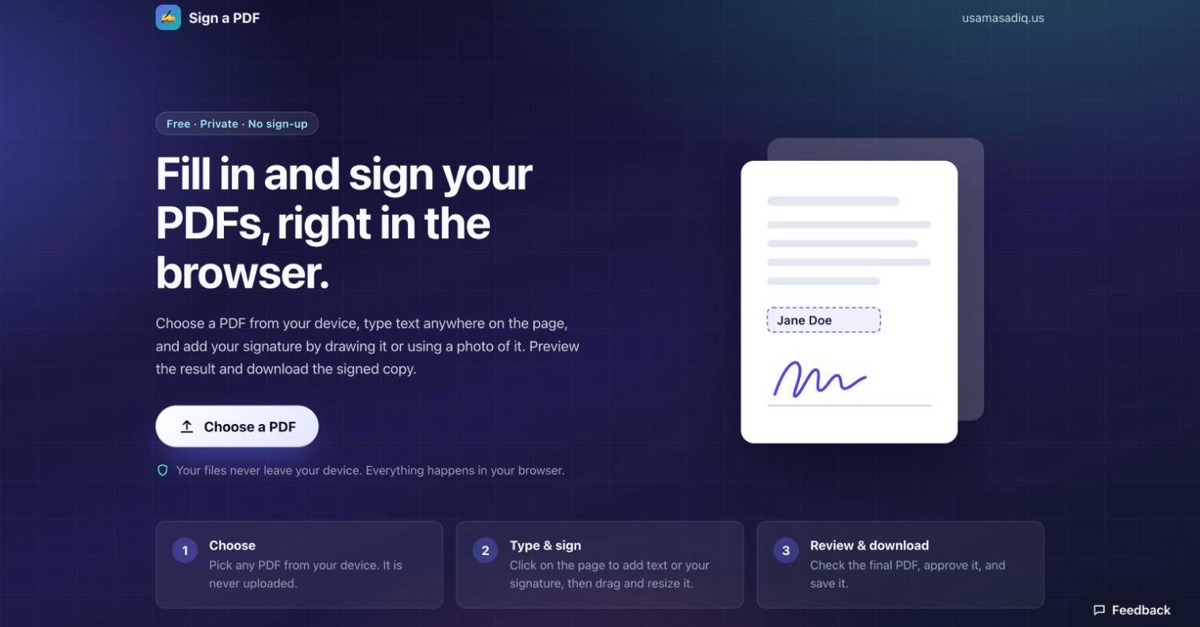
You can sign a PDF for free without uploading it to a server by using a tool that runs entirely in your browser. Sign a PDF lets you open a PDF from your device, type text anywhere, draw your signature or add a photo of it, preview the result and download the signed copy. There is no server behind it, no account and no watermark, so the file never leaves your device.
How to sign a PDF without uploading it
Signing a PDF takes six steps and about a minute:
- Open Sign a PDF and click Choose a PDF. The file is read inside your browser tab, not sent anywhere.
- Add text with Add text, then click where it should go. Use it for names, dates and form fields.
- Add your signature with Add signature. Draw it with a mouse, finger or stylus, or add a photo of your signature; a white background is removed automatically.
- Place it by clicking on the page, then drag to move it and use the corner handle to resize it.
- Review with Review & finish. The preview is the real output file, page by page.
- Download with Approve & download. You get a copy named
<your file>-signed.pdf.
Why I built a PDF signer that never sees your PDF
Most free online PDF signers upload your document to their server before you can sign it. For contracts, leases, offer letters and HR forms, that upload is the part I did not want.
By sheer coincidence, I had to sign two different documents, one being a student’s internship evaluation form and another a contract agreement with a friend for an informal deal but I couldn’t find any reliable tool over the internet that allowed me to do this without signing up. For those who allowed the file upload and edit without signing in, required a paid subscription at the download step after I went through the complete hassle of uploading my signature file and completely editing the pdf files as required. It turned out different pdf signing tools available online were also gatekeeping the simple pdf signing feature along with other advanced features including Adobe requiring pro version for this too.
One workaround possible was to use a cracked-tool but that’s the forbidden fruit for me considering the software security situation and security incidents these days so I finally decided to spend my morning on building this small tool for myself and making it available for everyone else who may be needing a similar solution to sign documents without uploading them anywhere else.
Signing a document should not require trusting a stranger with it.
Is it safe to sign a PDF online?
It is safe when the PDF is processed on your own device; the risk comes from tools that upload it. Once a file is on someone else’s server, you are relying on their retention policy, their security and their staff.
Choosing a file is not the same as uploading it. When you pick a PDF in Sign a PDF, your browser reads it into the open tab on your own device. Uploading means sending it over the internet to someone else’s server, and that never happens here.
You can check any tool yourself in under a minute:
- Open the browser’s developer tools (F12, or right-click and choose Inspect) and go to the Network tab.
- Load your PDF into the tool.
- Look for a large request carrying the file. If there is none, the file stayed on your device.
With Sign a PDF, the only requests are the page and its scripts, plus your feedback message if you choose to send one. Your PDF and signature are never sent, and nothing is stored after you close the tab.
Browser-only vs upload-based PDF signers
The difference is where your file goes. A browser-only signer processes it on your device; an upload-based one sends it to a server first.
| Browser-only (Sign a PDF) | Typical free upload-based signer | |
|---|---|---|
| Where the PDF goes | Stays on your device | Uploaded to the provider’s server |
| Account needed | No | Often, at least for downloads |
| Watermark or daily limits | None | Some free tiers add them |
| Cost | Free, no paid tier | Free tier, then subscription |
| Works with any PDF reader afterwards | Yes, a standard PDF | Yes |
| Certificate-based digital signature | No | Usually only on paid plans |
How it works without a server
Everything a PDF signer needs, a modern browser can already do. Sign a PDF is a static TypeScript app on GitHub Pages, built from three pieces:
- pdf.js, Mozilla’s PDF renderer, draws each page to a canvas.
- pdf-lib writes your text and signature into the original document and saves a new file. I used the maintained Cantoo fork, since the original package has not had a release in years.
- A Blob download hands the finished file back to you.
That makes privacy a property of the design rather than a promise. I do not have to say “we delete your files after an hour”, because I never receive them. It also costs nothing to run. The source is on GitHub.
What was harder than it looked
The features were the easy part. Making the downloaded file match the screen was not.
- Positioning. Screens measure from the top left in pixels; PDFs measure from the bottom left in points, and pages can be rotated or cropped. Each item is stored as a fraction of its page and converted with pdf.js’s own page transform at export. I tested a normal page, a page rotated 90 degrees and a cropped page, and checked every placement against the preview.
- Fonts and languages. PDFs’ built-in fonts only cover Western European characters, so Urdu first came out as
????. Latin text is now written as real, selectable text, and anything else is drawn as a sharp image in the same spot. - An honest preview. Review & finish renders the actual output file, not the editor. If the preview looks right, the download is right.
Electronic signature vs digital signature
An electronic signature is a visible mark of intent on a document; a digital signature is a cryptographic seal that proves who signed and that nothing changed afterwards. Sign a PDF creates electronic signatures.
| Electronic signature | Digital signature | |
|---|---|---|
| What it is | Your signature image or typed name on the page | A certificate-based cryptographic seal embedded in the file |
| What it proves | Intent to sign | Signer identity and that the document is unchanged |
| Needs | Nothing beyond the PDF | A certificate from a trusted provider |
| Good for | Everyday forms, letters, agreements | Regulated filings, some contracts and government forms |
| Sign a PDF | Yes | No |
One caution: adding anything to a PDF that already carries a digital signature invalidates that signature, in this tool or any other editor.
Report a problem or suggest an idea
You can tell me about a problem or suggest a feature without a GitHub account. Click Feedback in the corner of Sign a PDF, choose Something isn’t working or I have a suggestion, describe it in your own words and add your name if you like.
Your message becomes a public issue on the project’s GitHub page, so anyone can follow it and see when it is fixed. Behind the button is the tool’s only server-side piece: a small Cloudflare Worker that posts the issue for you. It receives only what you type in the form, never your PDF or signature, and keeps nothing itself.
Because the message is public, leave out personal details and anything from your documents.
Frequently asked questions
How can I sign a PDF for free without Adobe?
Use a browser-based tool such as Sign a PDF. Open the PDF, add your signature and download it. You do not need Adobe Acrobat, an account or any installed software.
Can I sign a PDF without uploading it?
Yes. On Sign a PDF, you choose the PDF from your device and your browser reads it locally; it is never sent to a server. You can confirm this in the browser’s Network tab.
Is Sign a PDF really free?
Yes. There is no paid tier, no watermark, no sign-up and no daily limit. It runs as a static page, so there are no server costs to pass on.
Can I sign a PDF on my phone?
Yes. It runs in a mobile browser, and you can draw your signature with your finger or a stylus.
Can I add text, dates or my name to a PDF?
Yes. Use Add text, click anywhere on the page and type. You can move the text and resize it with the corner handle.
Can I use a picture of my signature?
Yes. Choose Use an image in the signature window. A white or near-white background is removed automatically, so the signature looks like ink on the page. Like the PDF, the image stays on your device.
Does it work with Urdu, Arabic or other languages?
Yes. English and other Latin-script text is saved as real text. Text in other scripts, such as Urdu, is saved as a high-resolution image in the same position, so it displays correctly in any PDF reader.
Is my signature saved anywhere?
No. Your signature exists only in the open browser tab and is gone when you close it.
Is an electronic signature legally binding?
In many countries, including the US (ESIGN Act) and the EU (eIDAS), electronic signatures are generally recognised for most everyday agreements. Some documents need a certificate-based digital signature or a wet-ink signature. Check what applies to your document and get a legal opinion if you are not sure about it.
How do I report a problem or suggest a feature?
Click Feedback on the Sign a PDF page, describe the problem or idea and send it. You do not need a GitHub account, and your name is optional. Messages are posted publicly as GitHub issues.
Try it
Sign a PDF: free, private and with nothing to install. The source code is on GitHub.
Found a problem or have an idea? Use the Feedback button on the page; no account needed.